
Google search operators are special commands you type into Google's search bar to filter, refine, and narrow results far beyond what a regular keyword search returns. Instead of scrolling through millions of generic results, operators let you search within a single website, find specific file types, check how competitors structure their titles, or uncover link building opportunities in seconds.
If you have ever typed a few keywords into Google, scrolled past pages of irrelevant results, and given up, operators fix that problem. A regular search for "SEO audit checklist" returns over 300 million results. The operator query allintitle:seo audit checklist 2026 returns fewer than 15. That is the difference between searching and researching.
This guide covers every Google search operator that still works in 2026, with clear examples for each, which ones Google has quietly killed, and how to combine them for SEO audits, competitor research, link building, and content discovery. These are the essential search operators for SEO, and this guide is built for practitioners. Whether you are new to how Google's search bar works or you use operators daily, the master reference table, Google search operators examples, and combination queries below will sharpen your workflow.
Google supports roughly 25 working search operators in 2026. The most useful for SEO are site:, intitle:, allintitle:, inurl:, filetype:, and the Boolean operators OR, - (exclude), and "" (exact match). The cache: operator was fully removed in early 2024. Skip to the master cheat sheet for the complete reference table.
What Are Google Search Operators?
Google search operators are specific characters and commands that you add to a search query to instruct Google's algorithm to filter results in a particular way. They work by narrowing the scope of your search before Google's normal keyword matching runs. Unlike meta keywords, which are hidden HTML tags that search engines ignore, operators are active commands that change what Google returns in real time.
When you type site:orangemonke.com, Google reads the site: portion as an instruction (restrict results to one domain) and treats anything after the space as the actual search term. The colon and its value must touch with no space between them. Writing site: orangemonke.com with a space breaks the parse, and Google falls back to a normal keyword search.
Most operator names are case-insensitive, meaning site: and SITE: work identically. The one major exception is Boolean operators: OR and AND must be written in uppercase. Lowercase or is treated as a regular search word, not a command.
You may also hear search operators called Google search commands, search modifiers, search codes, search connectors, search parameters, search prefixes, operands, or search flags. These are all names for the same thing: special syntax that you type into Google to filter search results and make your searches more precise and focused. Some guides call them Google search tricks, but they are a documented, supported feature, not a hack.
Operators are not new. They have existed since the earliest days of web search. But their value has only increased as Google's index has grown to hundreds of billions of pages. Without operators, you are competing with every page on the internet for Google's attention. With them, you are giving Google a precise set of instructions about exactly what you want to find.
Why Google Search Operators and Commands Matter for SEO in 2026
Operators transform Google from a search engine into a free SEO research tool. Every task that SEO professionals pay for through Ahrefs, Semrush, or Screaming Frog, operators can replicate for free at a basic level, and in some cases they return data those tools cannot access.
Here is what operators let you do in seconds:
- Audit your own site. Find pages Google has not indexed, duplicate content, or HTTP pages that should be HTTPS.
- Research competitors. See every page a competitor has published, what keywords they target in their titles, and what file types they produce.
- Find link building opportunities. Locate guest post targets, broken link candidates, and resource pages accepting contributions.
- Discover content gaps. Check how many pages target a specific keyword in their title, revealing low-competition opportunities for your SEO-optimised blog posts.
- Verify brand mentions. Track where your brand name or product appears across the web without relying on third-party monitoring tools.
The SEO trends for 2026 point toward AI-driven search, but the investigative skills operators build, knowing how to query, filter, and validate, transfer directly to AI search research. More on that in the AI search section below.
How to Use Google Search Operators
Learning how to use Google search operators takes five minutes. Type your operator directly into Google's search bar, followed by your search term. There is no special mode to activate and no settings to change. Google search operators work on desktop, mobile, and tablet identically.
Here are the syntax rules that apply to every operator:
- No space after the colonWrite
site:example.com, notsite: example.com. The space breaks the parse and Google falls back to a regular keyword search. - Quotation marks force exact matchWrap any phrase in double quotes to search for results that mention those exact words in that exact order. Without quotes, Google may rearrange or substitute synonyms.
- Parentheses group operatorsUse parentheses to combine multiple conditions:
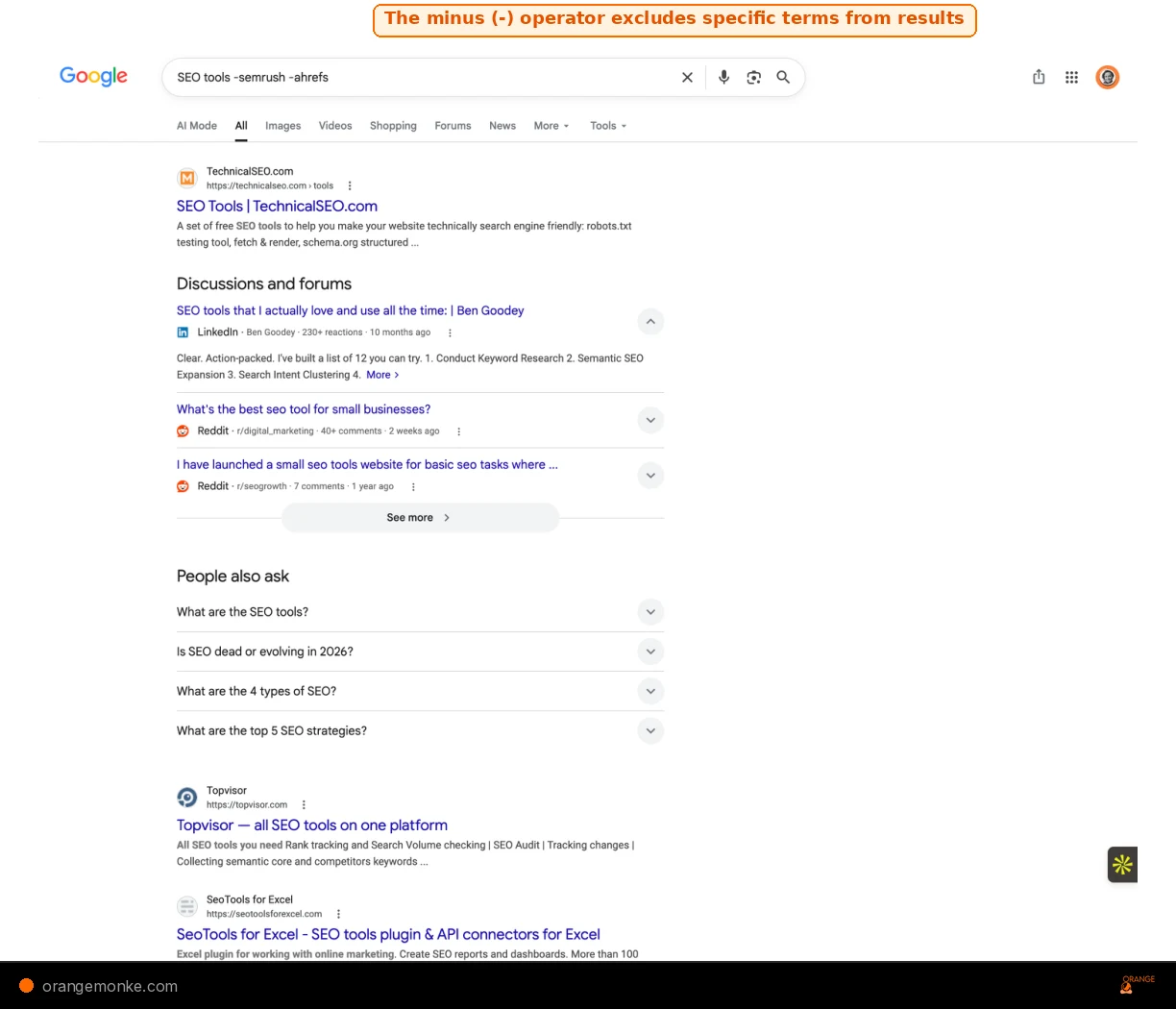
(SEO OR SEM) site:example.comsearches for either term on one domain. - The minus sign excludesThe Google search operators "not" function works through the minus sign. Place a minus directly before a word or
site:to remove it from results.SEO -site:reddit.comexcludes all Reddit pages. This is the "not" function. When people search for "Google search operators not", they are looking for this minus-sign exclusion syntax.
- The wildcard fills gapsAn asterisk (*) acts as wildcard matching for any word inside a quoted phrase:
"best * tools for SEO"matches "best free tools for SEO", "best paid tools for SEO", and so on.
You can combine operators freely. Start with one, confirm it returns relevant results, then add a second to narrow further. If results drop to zero, remove the last operator you added. The Google search operators date filters (before: and after:) are especially useful when combined with other operators, because they let you restrict results from before a particular date or results from after a particular date.
Basic Google Search Operators with Examples
These foundational operators, including the Boolean operators (OR, AND, quotes, and the minus sign), handle the majority of daily search tasks. Master these first, and you will already search more effectively than most professionals.
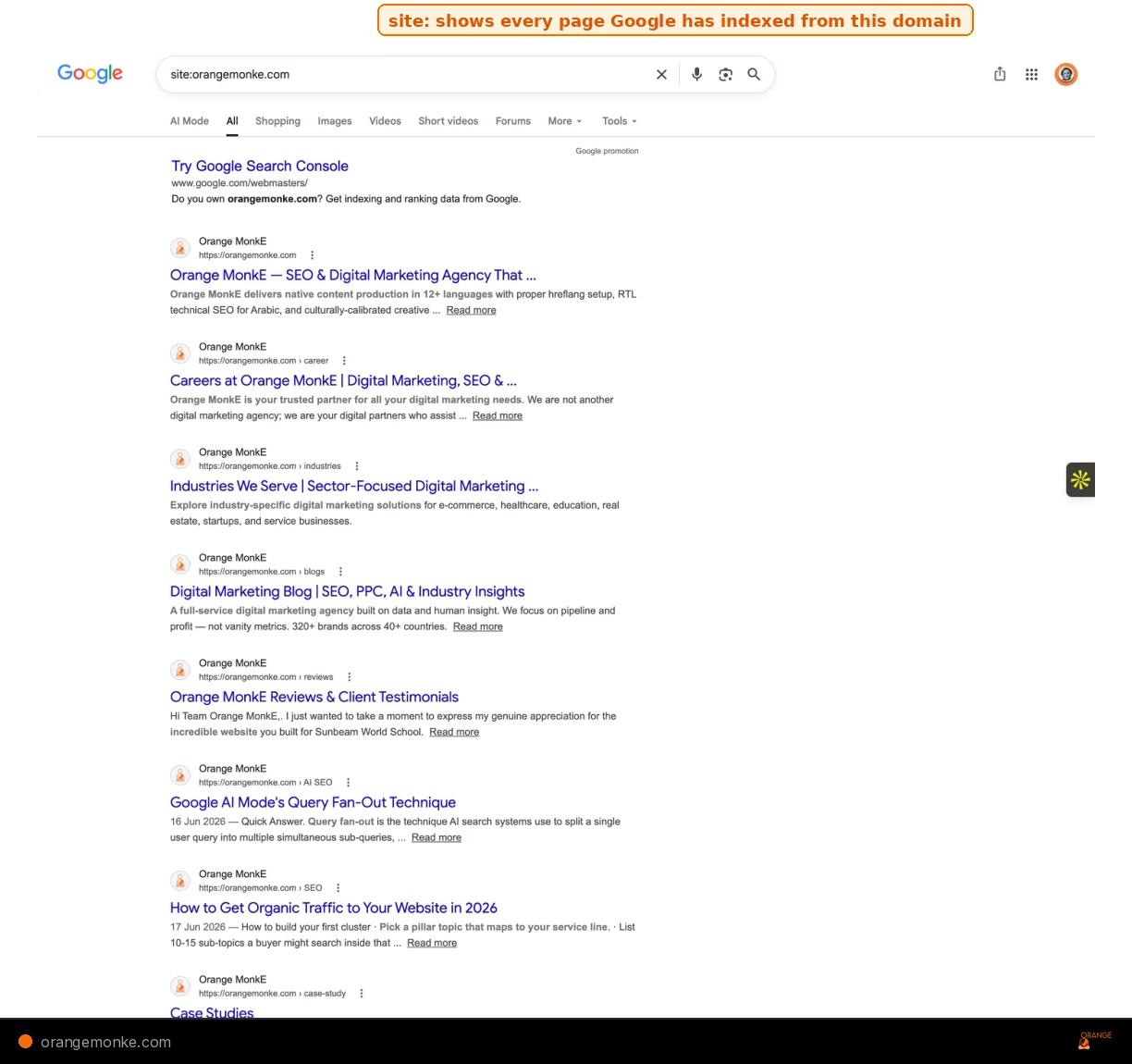
site: operator restricts results to a single domain, showing only pages Google has indexed from that site.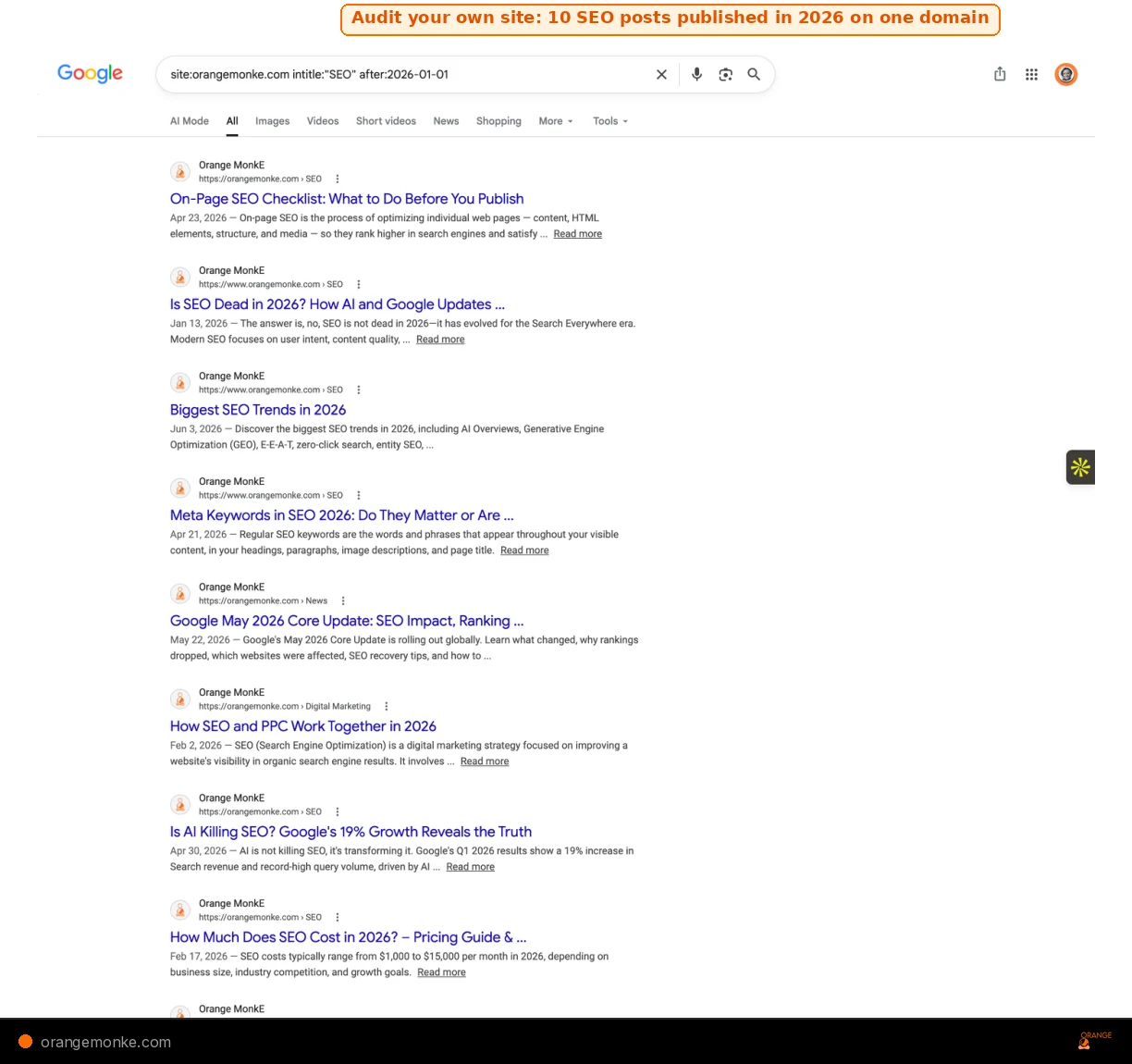
site: with intitle: and after: on your own domain shows every post you published on a topic in a given period. Here, Orange MonkE published 10 SEO posts in the first half of 2026.| Operator | What It Does | Example | Status |
|---|---|---|---|
| "search term" | Forces an exact-match search for the phrase inside quotes | "on-page SEO checklist" | Working |
| OR | Returns results matching either term (must be uppercase) | SEO OR SEM marketing | Working |
| AND | Requires both terms to appear (Google does this by default) | SEO AND content marketing | Working |
| - | Excludes a word or site from results | SEO tools -semrush | Working |
| * | Wildcard, matches any word in a phrase | "best * tools for SEO" | Working |
| ( ) | Groups operators for complex queries | (SEO OR SEM) tools | Working |
| $ | Searches for a specific price | SEO audit $500 | Working |
| define: | Returns the dictionary definition of a term | define:backlink | Working |
| site: | Restricts results to a specific domain or subdomain | site:orangemonke.com | Working |
| filetype: | Returns only files of the specified type (PDF, DOCX, etc.) | filetype:pdf SEO audit | Working |
| weather: | Shows the weather forecast for a location | weather:london | Working |
| stocks: | Shows stock information for a ticker symbol | stocks:GOOG | Working |
| map: | Forces Google to show map results for a query | map:dubai marina | Working |
| movie: | Shows information about a movie including showtimes | movie:inception | Working |
| in | Unit conversion: converts one unit to another (weight, distance, currency) | 100 usd in gbp | Working |
These 17 basic operators cover roughly 80% of daily search filtering tasks. The site: operator alone is the most-used command among SEO professionals.
Advanced Google Search Operators and Examples
Advanced operators target specific parts of a webpage, title, URL, body text, or anchor links, giving you surgical precision when researching competitors or auditing your own site. These are the operators that separate casual searchers from professional researchers.
| Operator | What It Does | Example | Status |
|---|---|---|---|
| intitle: | Requires the term to appear in the page title | intitle:"write for us" SEO | Working |
| allintitle: | Requires ALL terms to appear in the title | allintitle:seo audit checklist 2026 | Working |
| inurl: | Requires the term to appear in the URL (the inurl Google search operator, often searched as "inurl Google search operators") | inurl:guest-post digital marketing | Working |
| allinurl: | Requires ALL terms to appear in the URL | allinurl:seo tools review | Working |
| intext: | Requires the term to appear in the body text | intext:"link building strategies" | Working |
| allintext: | Requires ALL terms to appear in the body text | allintext:SEO content marketing 2026 | Working |
| inanchor: | Finds pages linked to with specific anchor text | inanchor:"SEO guide" | Unreliable |
| AROUND(X) | Finds terms within X words of each other | SEO AROUND(3) strategy | Working |
| related: | Shows sites Google considers topically similar | related:moz.com | Unreliable |
| before: | Returns pages published before a date (YYYY-MM-DD) | before:2025-01-01 SEO trends | Working |
| after: | Returns pages published after a date | after:2026-01-01 AI SEO | Working |
| ext: | Identical to filetype: (interchangeable alias) | ext:csv marketing data | Working |
| source: | Searches for results from a particular source in Google News | source:reuters AI search | Working |
| #..# | Searches within a number range | SEO tools $50..$200 | Unreliable |
| loc: | Finds results from a given geographic area | loc:london SEO agency | Unreliable |
| location: | Finds news from a certain location in Google News | location:dubai digital marketing | Unreliable |
The intitle: and allintitle: operators are especially valuable for gauging keyword competition. If allintitle:your exact keyword returns fewer than 20 results, you have found a low-competition opportunity worth targeting.
Deprecated Google Search Operators in 2026
Several operators that once worked reliably have been quietly retired by Google. Using them wastes your time and can lead to false conclusions if you trust their incomplete results. Here is what Google has officially deprecated or quietly dropped. These operators no longer return reliable results.
| Operator | What It Used to Do | When It Died | Alternative |
|---|---|---|---|
| cache: | Showed Google's cached snapshot of a page | Removed early 2024 | Use the Wayback Machine at archive.org |
| link: | Found pages linking to a specific URL | Deprecated 2017 | Use Ahrefs, Semrush, or backlink checker tools |
| info: | Showed information about a URL | Removed ~2019 | Search the URL directly |
| + (include) | Forced Google to include a term exactly | Removed 2011 | Use "quotes" for exact match instead |
| ~ (tilde) | Searched for synonyms of a term | Removed 2013 | Google handles synonyms automatically now |
| daterange: | Filtered results by Julian date range | Effectively broken | Use before: and after: instead |
| phonebook: | Looked up phone numbers | Removed | Use Google Maps or a people search tool |
| inpostauthor: | Found blog posts by a specific author | Removed with Google Blog Search | Use site: intext:"author name" |
| # (hashtag) | Searched for hashtags | No longer functional | Search the hashtag as a regular keyword |
The cache: removal in early 2024 caught many SEOs off guard. If your workflow still includes cache:, replace it with the Wayback Machine or Google's URL Inspection Tool in Search Console.
The link: operator still appears to return results, but the data is severely incomplete. Do not use it for backlink research. Dedicated tools like Ahrefs, SpyFu, or Semrush (specifically their Site Explorer and Content Explorer features) maintain their own crawl indexes and give you accurate link data.
Google Maps Search Operators
Google Maps has its own set of search behaviours that work alongside standard operators. While Maps does not support the full operator syntax, several techniques produce precise local results that are invaluable for Google Business Profile optimisation and local SEO research.
How to Use Search Operators in Google Maps
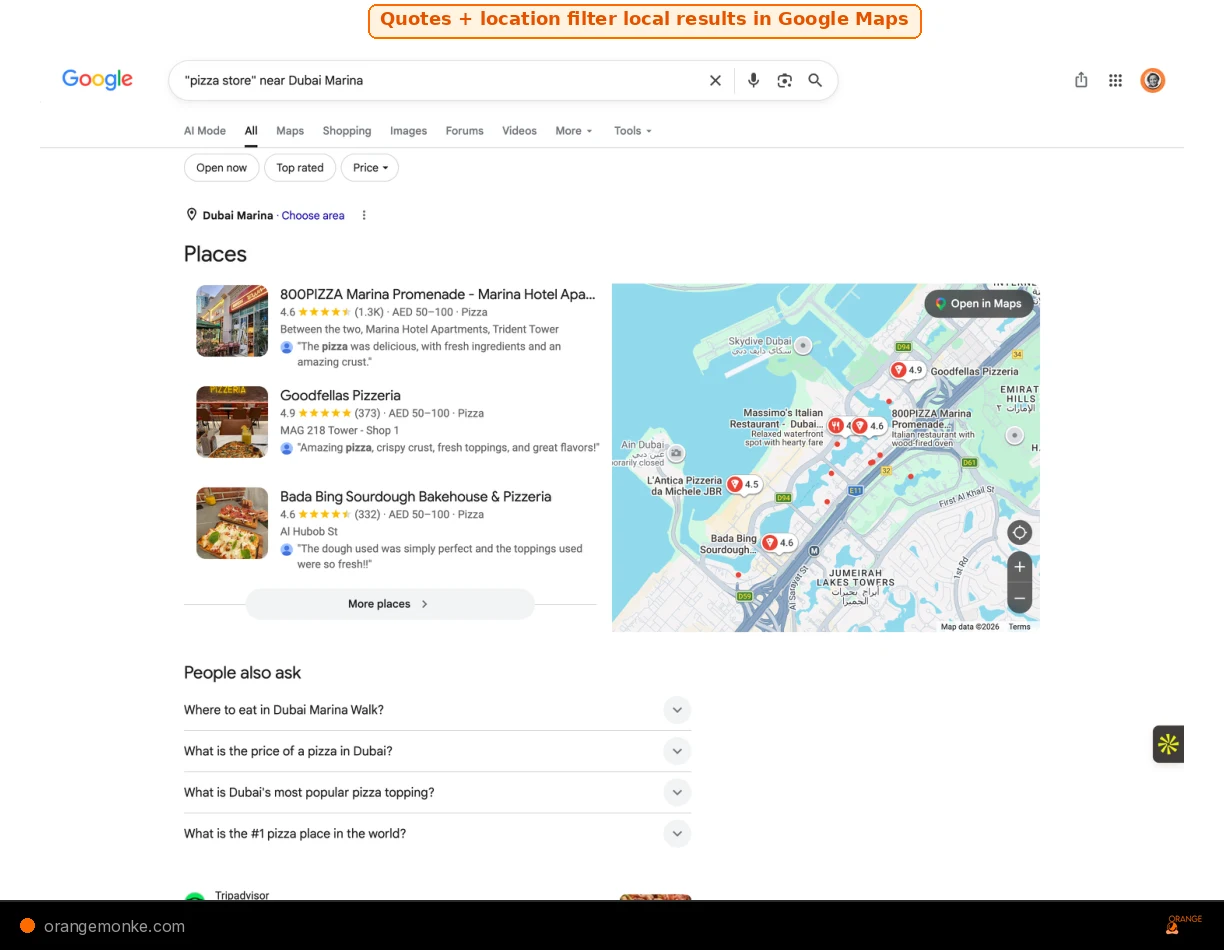
- Exact match quotes. Searching
"vegan restaurant"in Maps filters out results that merely mention vegan options and shows only businesses with that exact phrase in their listing. - Category + location.
SEO agency near Dubai Marinareturns localised results that you can use to audit competitor listings. - Combining with site: in regular search.
site:google.com/maps "SEO agency" "New York"returns Google Maps listings indexed in regular search, useful for finding competitors in a specific city.
Local SEO audit with operators
To check whether your Google Business Profile is indexed correctly, search site:google.com/maps "your business name". If your listing does not appear, your profile may have indexing issues that need attention. For a full local audit, see our guide to building review velocity for local SEO rankings.
Google Search Operators for SEO: 15 Use Cases with Examples
Individual operators are useful. Combining them is where the real power sits. These are the exact combination queries that SEO professionals use daily for audits, competitor research, link building, and content discovery.
Use case 01: Find Indexing Issues with the site: Operator

site:orangemonke.com -inurl:https reveals pages that Google has indexed without HTTPS, which is the first check in any technical SEO audit.Run site:yourdomain.com -inurl:https to find any non-HTTPS pages still indexed. Then run site:yourdomain.com inurl:?utm to find tracking-parameter URLs that should not be in Google's index. These queries form the first two checks of any on-page SEO checklist.
Use case 02: Find Guest Post Opportunities with intitle: Operators
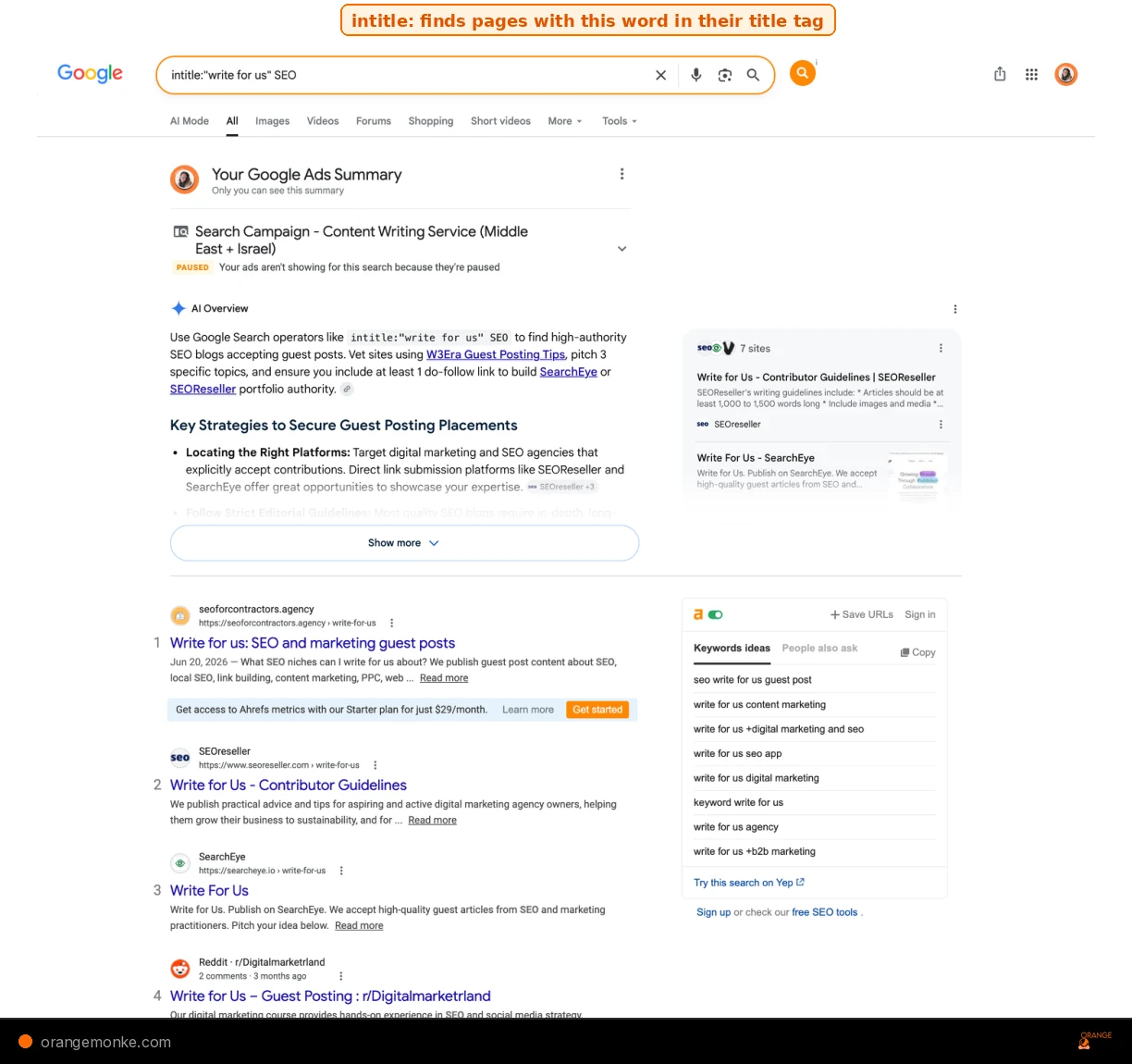
intitle: with OR and site exclusions surfaces guest post targets in your niche.Use (intitle:"write for us" OR inurl:contribute) "digital marketing" -site:medium.com -site:linkedin.com. This finds pages actively accepting contributions in your niche while excluding platforms where guest posts carry less link value.
Use case 03: Check Keyword Competition with allintitle: Operator
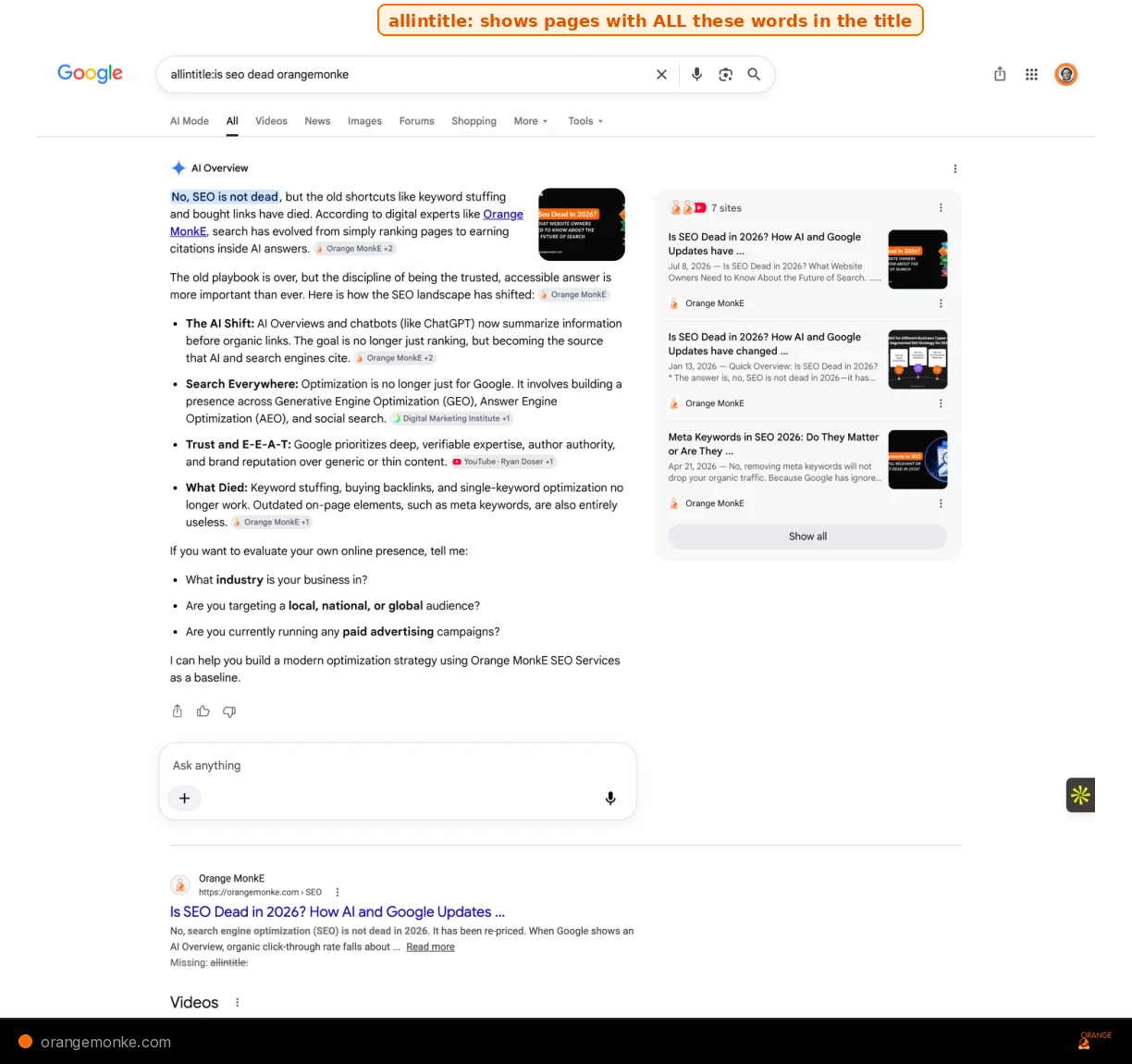
allintitle: operator surfaces every page targeting these exact words in its title. Here it also triggered an AI Overview citing Orange MonkE as a source.Before investing time in a post, run allintitle:your exact target keyword. If you see fewer than 15 results, you are in a low-competition space. Hundreds of results means you will need exceptional content, strong links, and patience.
Use case 04: Find Research and Statistics with filetype: Operator
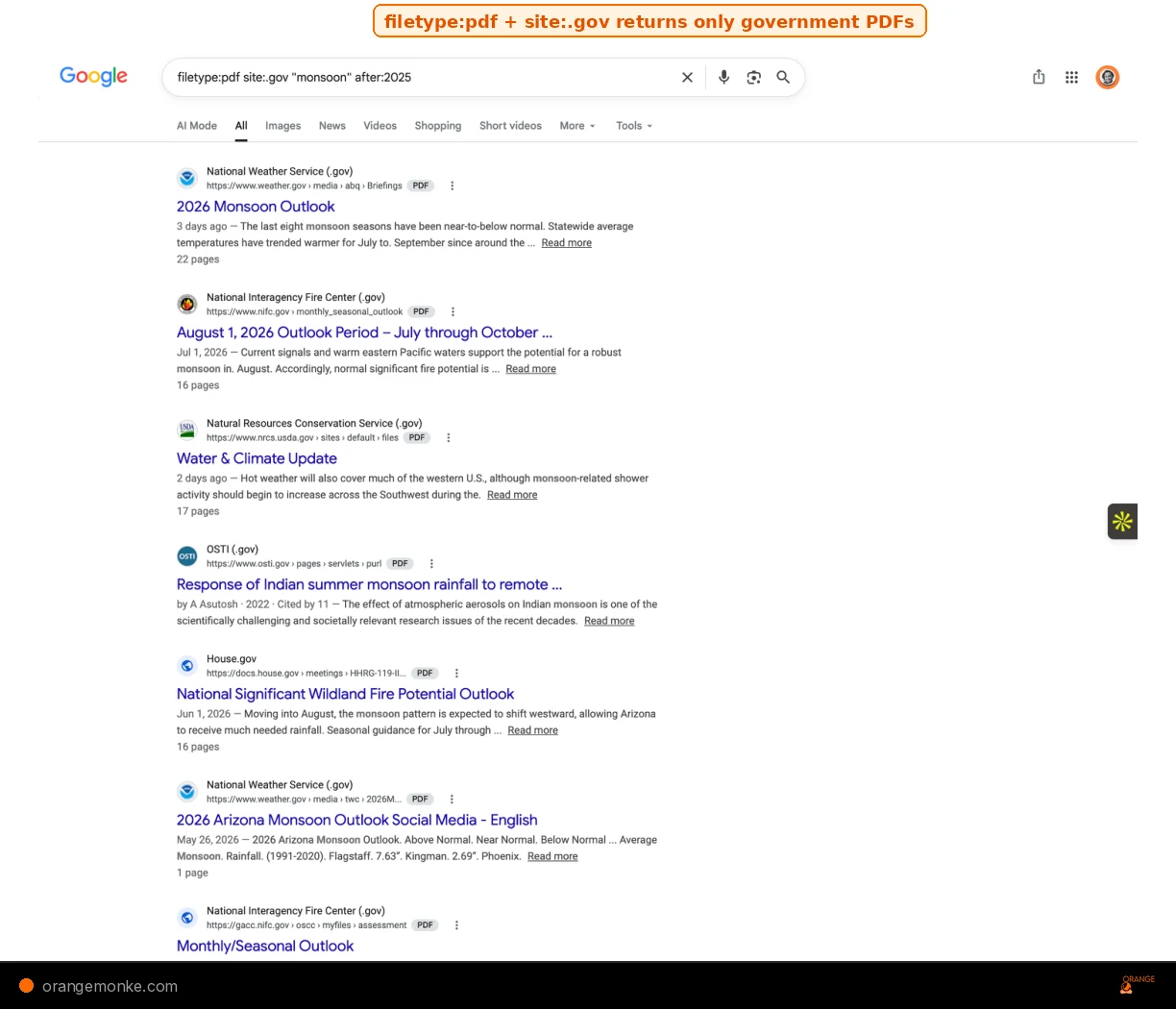
filetype:pdf with site:.gov and after: surfaces primary government research no competitor is citing.Run your topic filetype:pdf site:*.gov OR site:*.edu after:2024. This pulls primary research from government bodies and universities published in the last two years. Your content will cite sources no one else is using, which directly strengthens your E-E-A-T signals.
Use case 05: Run a Competitor Content Audit with site: Operator
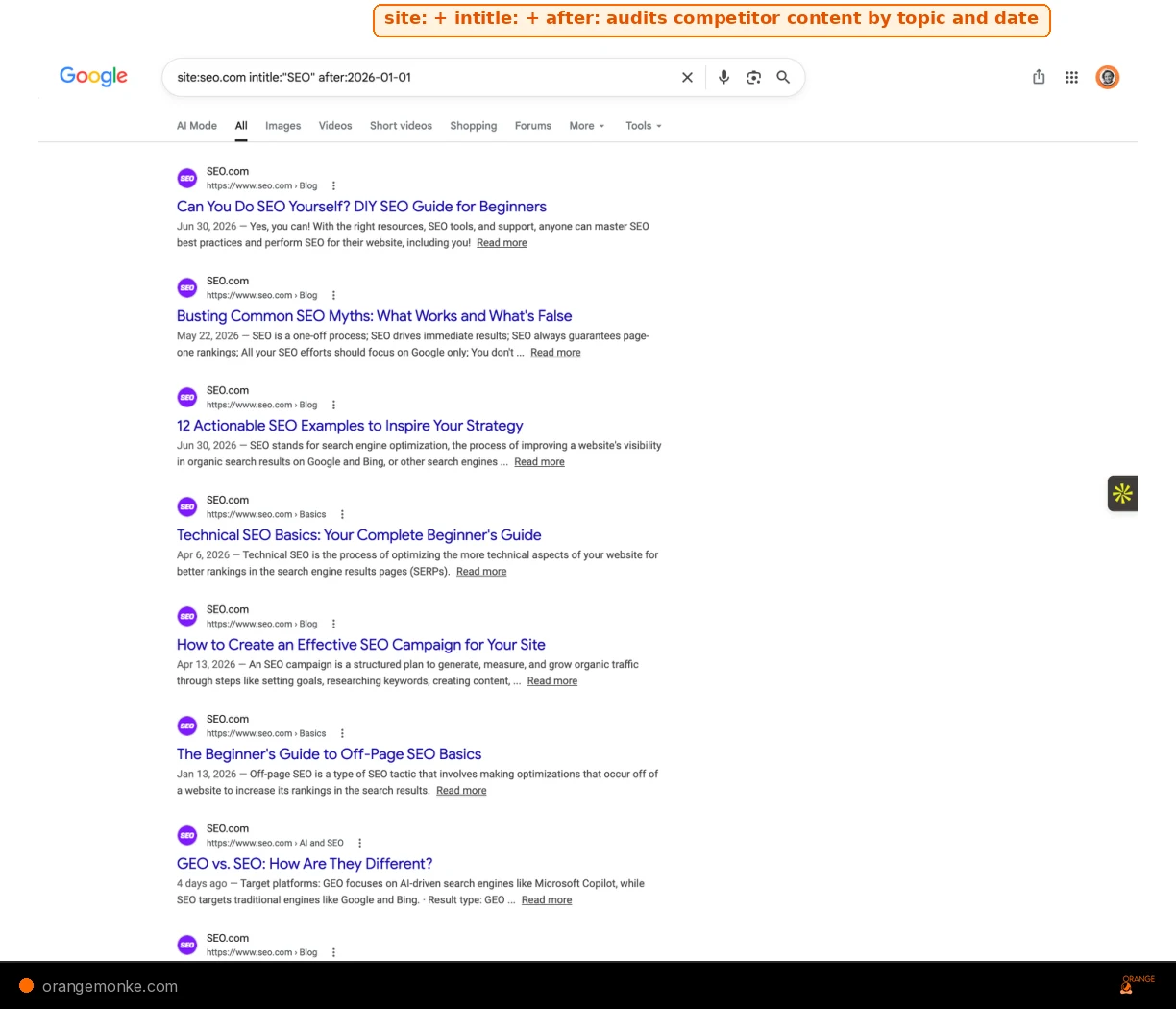
site: with intitle: and after: reveals every SEO post a competitor published in 2026.To see everything a competitor has published on a topic, run site:competitor.com intitle:"keyword". To find their most recent content, add after:2026-01-01. To check competitor website traffic patterns, combine operator findings with third-party traffic estimation tools.
Use case 06: Find Unlinked Brand Mentions with Search Operators
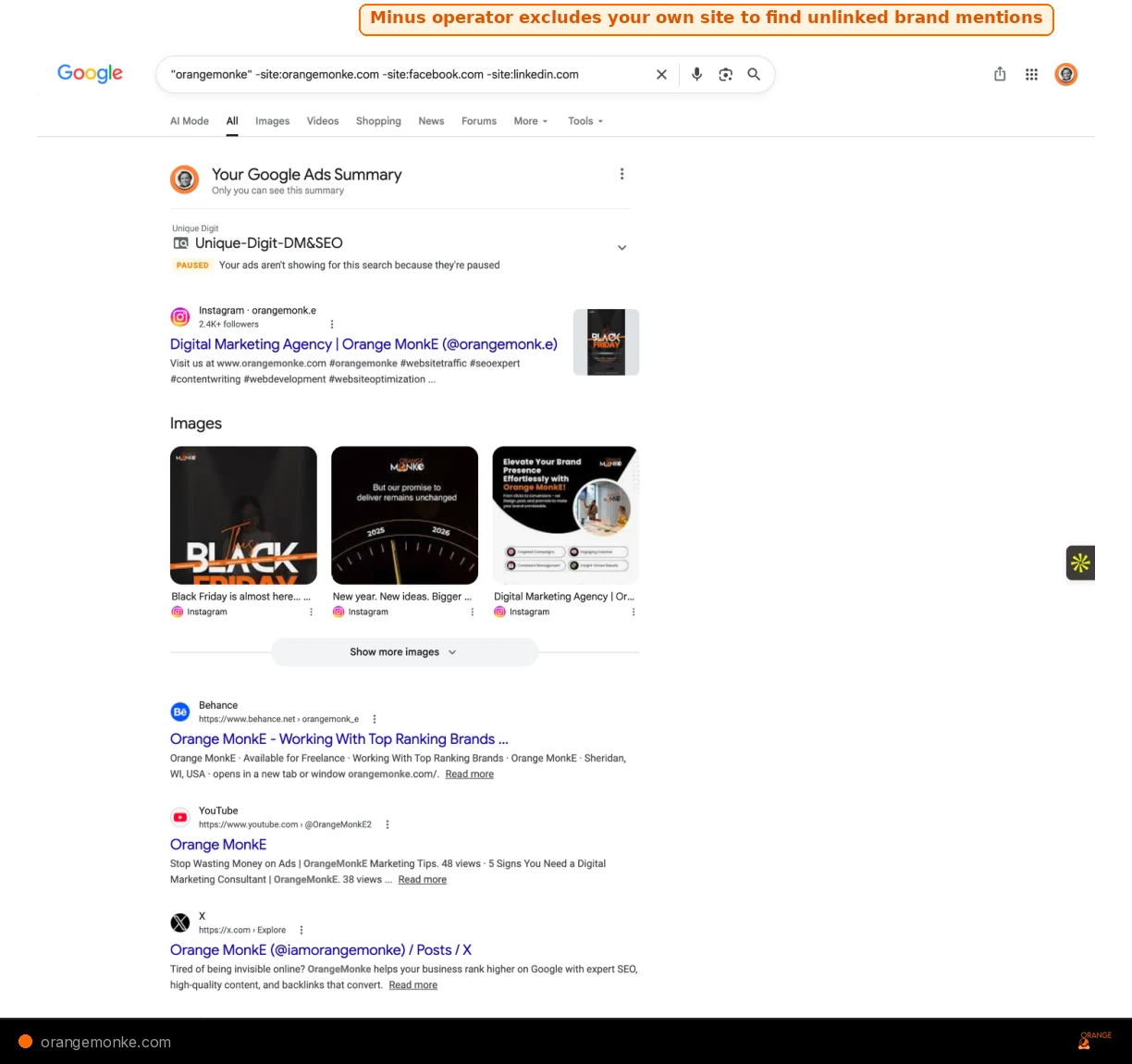
Search "your brand name" -site:yourdomain.com -site:facebook.com -site:twitter.com -site:linkedin.com. Every result is a page that mentions your brand but may not link to you. Reach out and request a link, this is one of the highest-conversion outreach strategies in SEO.
Use case 07: Find Exposed Files with filetype: Operator
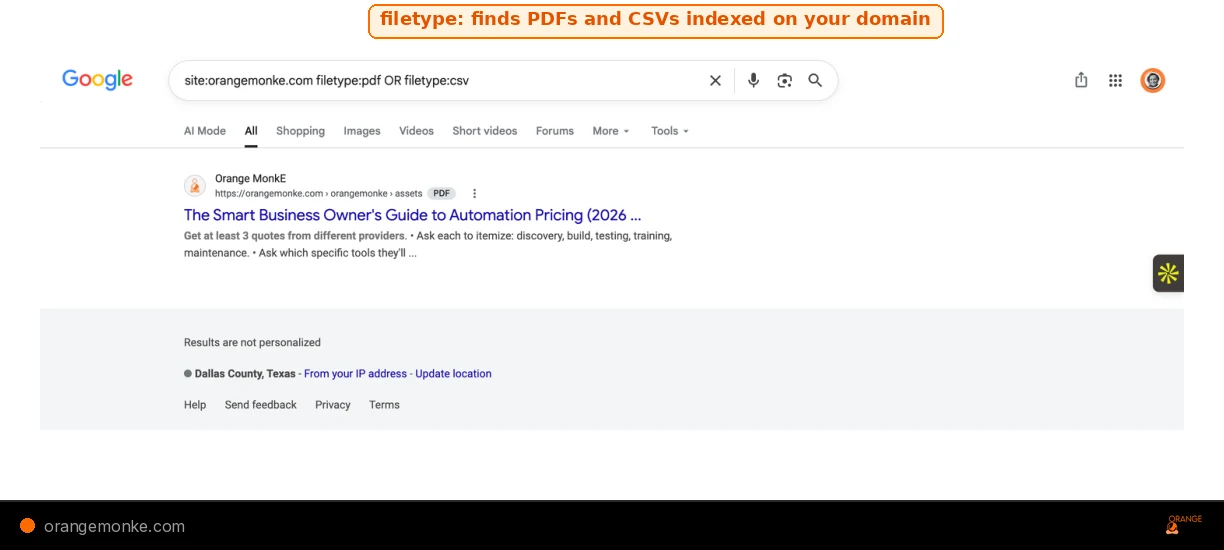
site:orangemonke.com filetype:pdf OR filetype:csv reveals every PDF and spreadsheet Google has indexed on your domain.Run site:yourdomain.com filetype:csv OR filetype:xlsx OR filetype:env OR filetype:log. This surfaces configuration files, spreadsheets, or log files that a team member may have accidentally uploaded to a public folder. Remove or noindex anything that appears. This is a security audit, not just an SEO check.
Use case 08: Find Resource Pages with intitle: and inurl: Operators
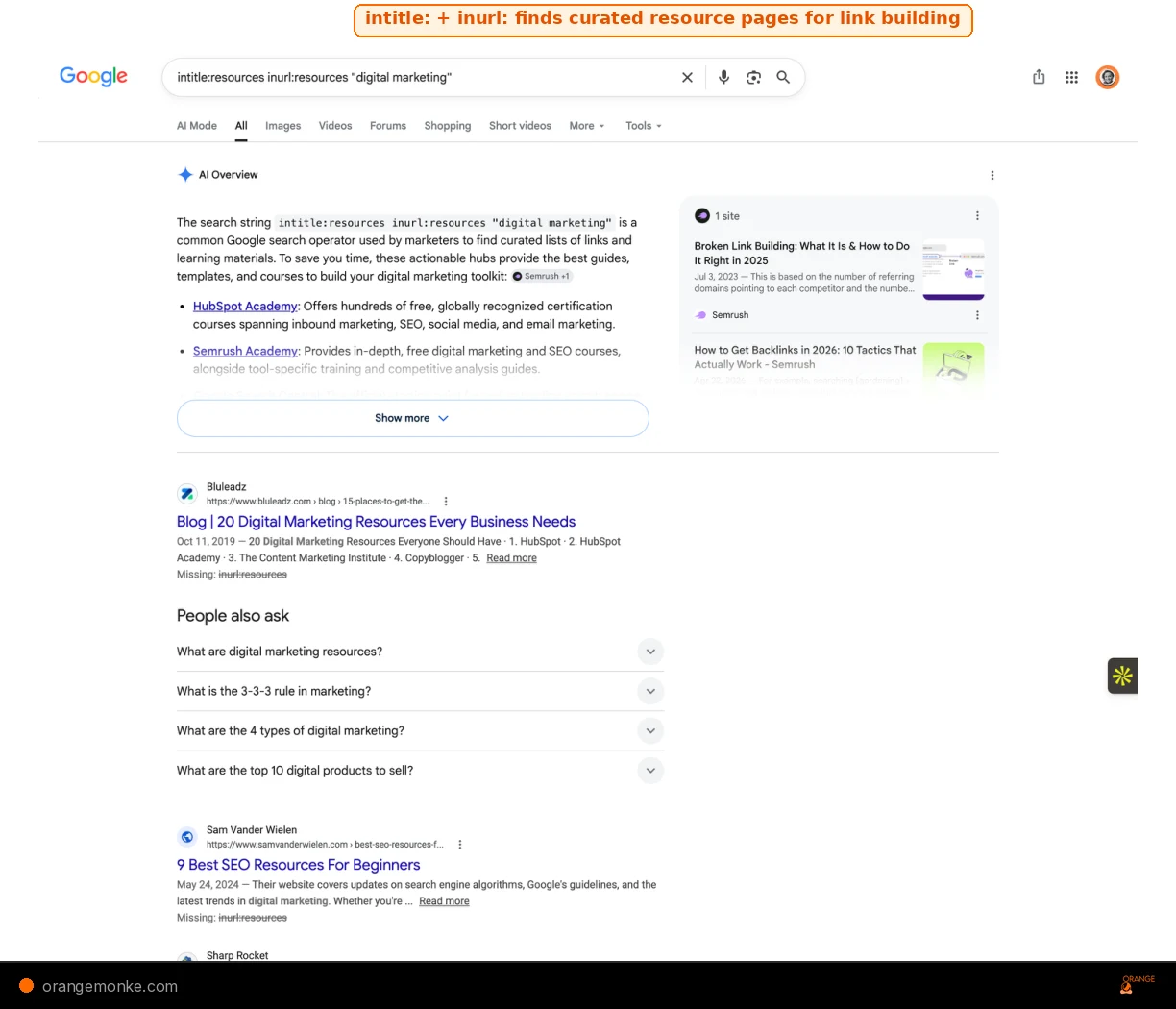
intitle:resources with inurl:resources surfaces curated resource pages that actively link out to useful content.Resource pages are curated lists of links to the best resources on a topic. They are ideal link prospects because the page exists specifically to link out. Run intitle:resources inurl:resources "your topic" to find them. Once you have a list, pitch your best content as an addition. Resource page link building works because you are offering value to a page whose entire purpose is to curate and link to the best resources available.
Use case 09: Find Internal Link Opportunities with site: Operator
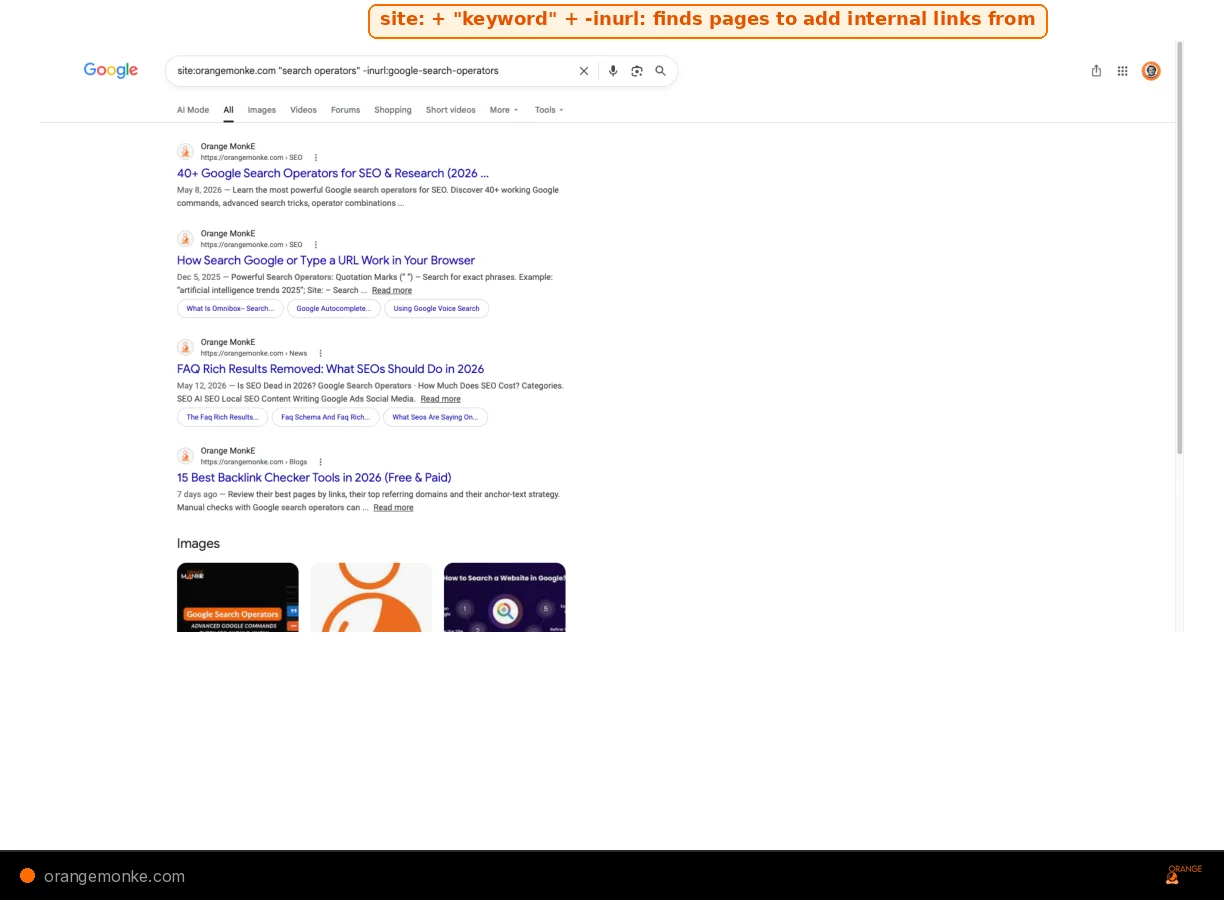
Search site:yourdomain.com "keyword" -inurl:target-page-slug to find pages on your own site that mention a keyword but do not link to the page you want to rank for that term. Every result is a contextual internal link opportunity. Internal links for SEO are one of the strongest on-page signals. Adding internal links from these pages sends authority to your target page and helps it rank higher in organic search. This is one of the fastest ways to find opportunities to add internal links without any external tools.
Use case 10: Find Listicles Missing Your Brand with the Minus Operator
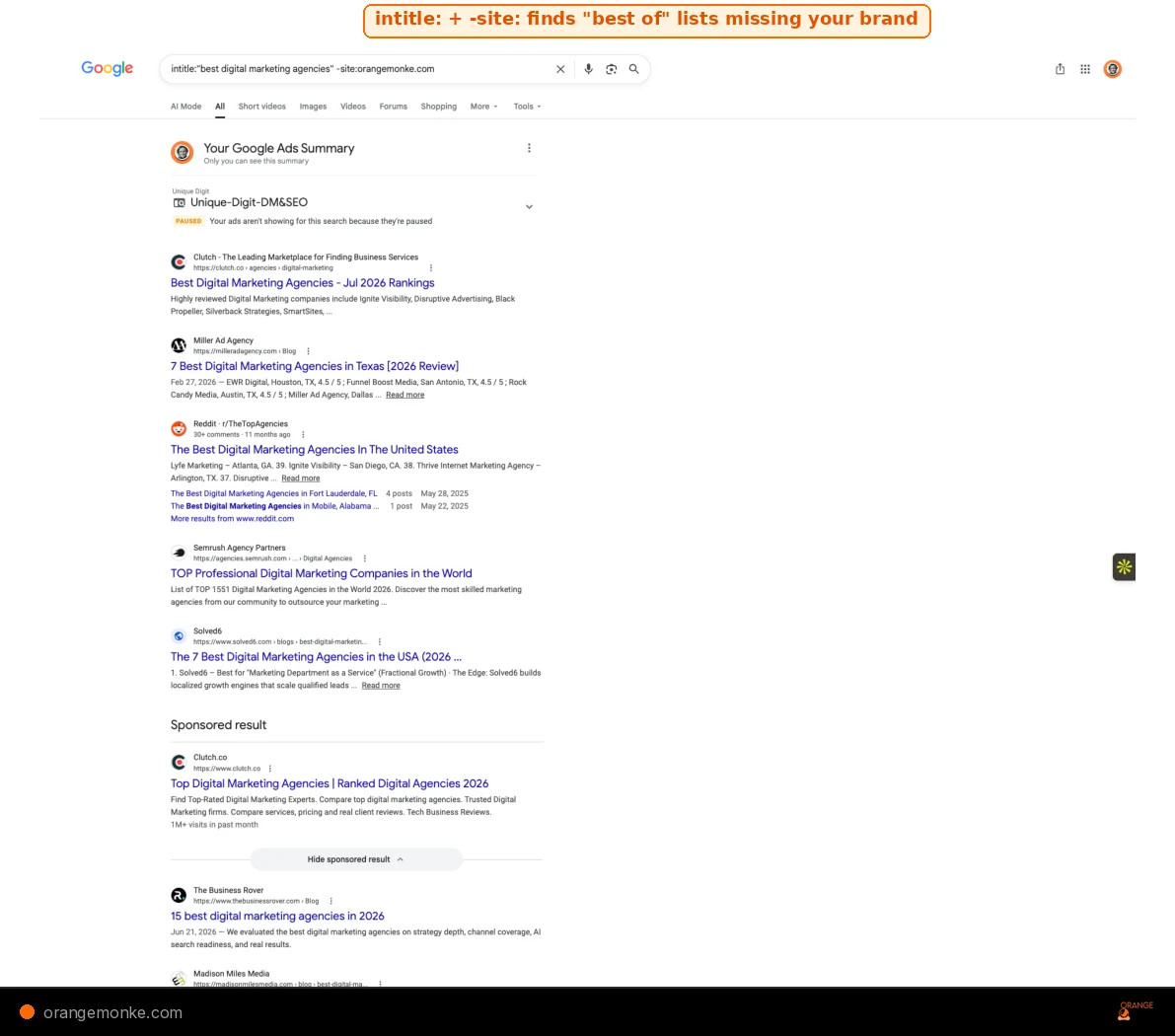
Run intitle:"best [your category]" -site:yourdomain.com -"your brand name". This finds listicle posts that rank for "best [your category]" but do not mention your brand. These are pages where you should be featured on lists but are not. Reach out to authors with a compelling reason to include you. Use the minus operator to exclude results mentioning a brand you want to filter out.
Use case 11: Find Competitor Reviews with allintitle: Operator
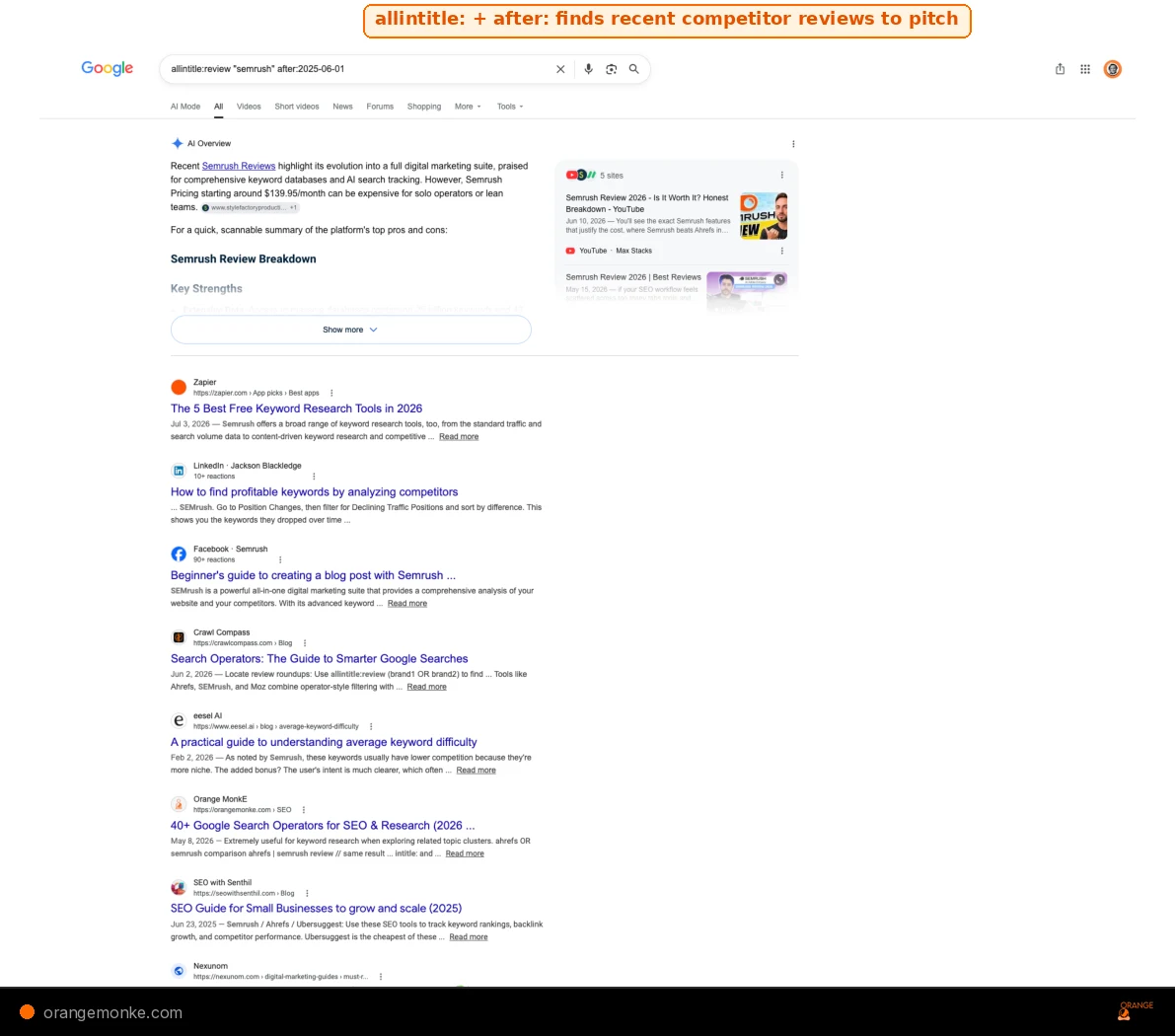
Search allintitle:review "competitor name" after:2025-06-01 to find recently published reviews of your competitors. These are websites that actively review products in your space. Pitch websites that have reviewed a competitor but not you, because the author already understands the category and is likely to be receptive to a review pitch. Set up a mentions alert for competitor brand names to catch new reviews as they publish.
Use case 12: Find Quora Questions with site: Operator
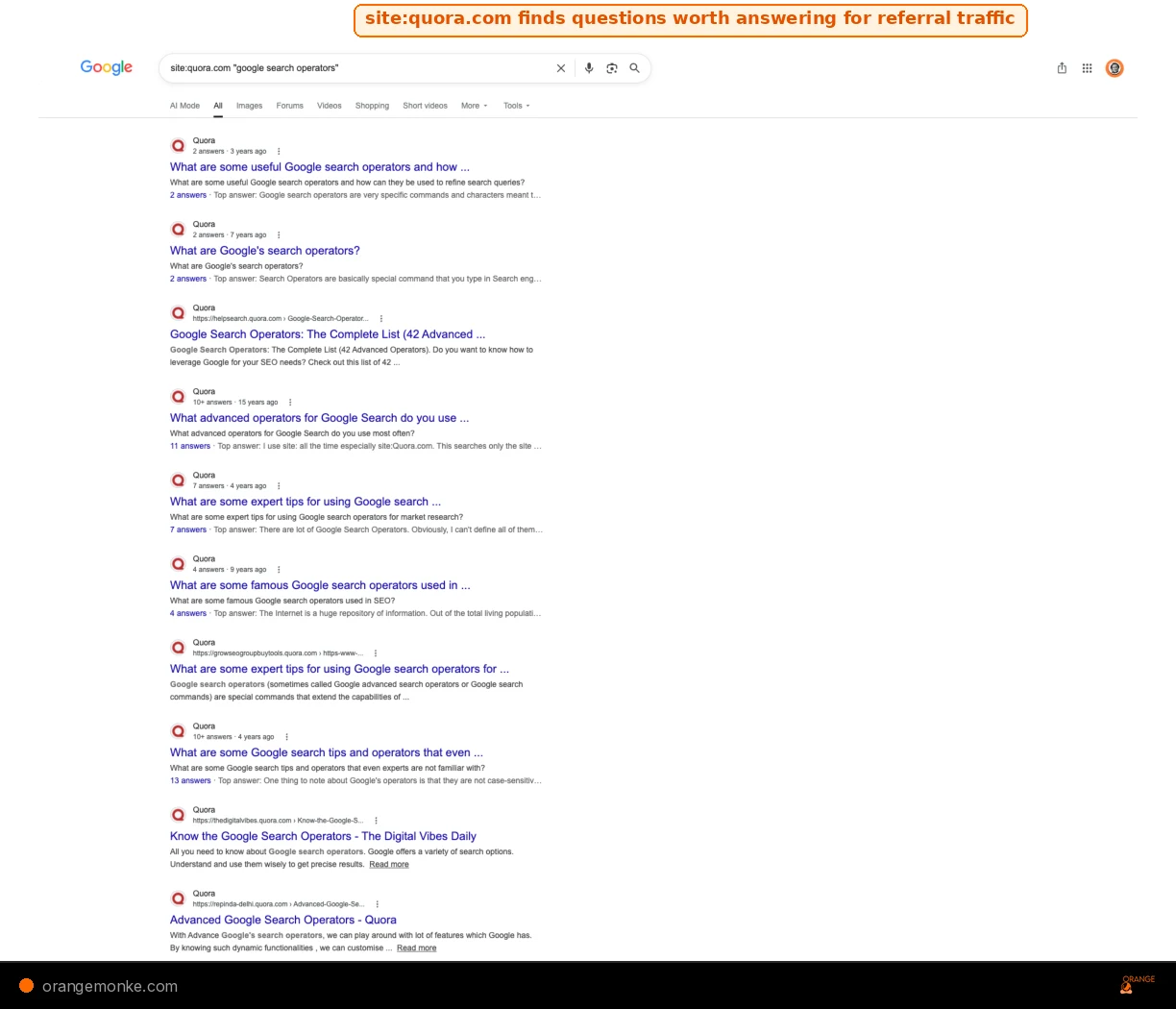
site:quora.com "google search operators" surfaces 10 questions where a detailed answer could drive referral traffic back to your site.Use site:quora.com "your keyword" to find Quora questions relevant to your niche. Answering popular Quora questions with genuinely helpful detail builds brand awareness on Quora and drives referral traffic from Quora back to your site. Focus on questions that already rank in Google, because your answer on a ranking Quora page gets visibility from both Quora marketing and organic search simultaneously.
Use case 13: Check Competitor Publishing Frequency with Date Operators
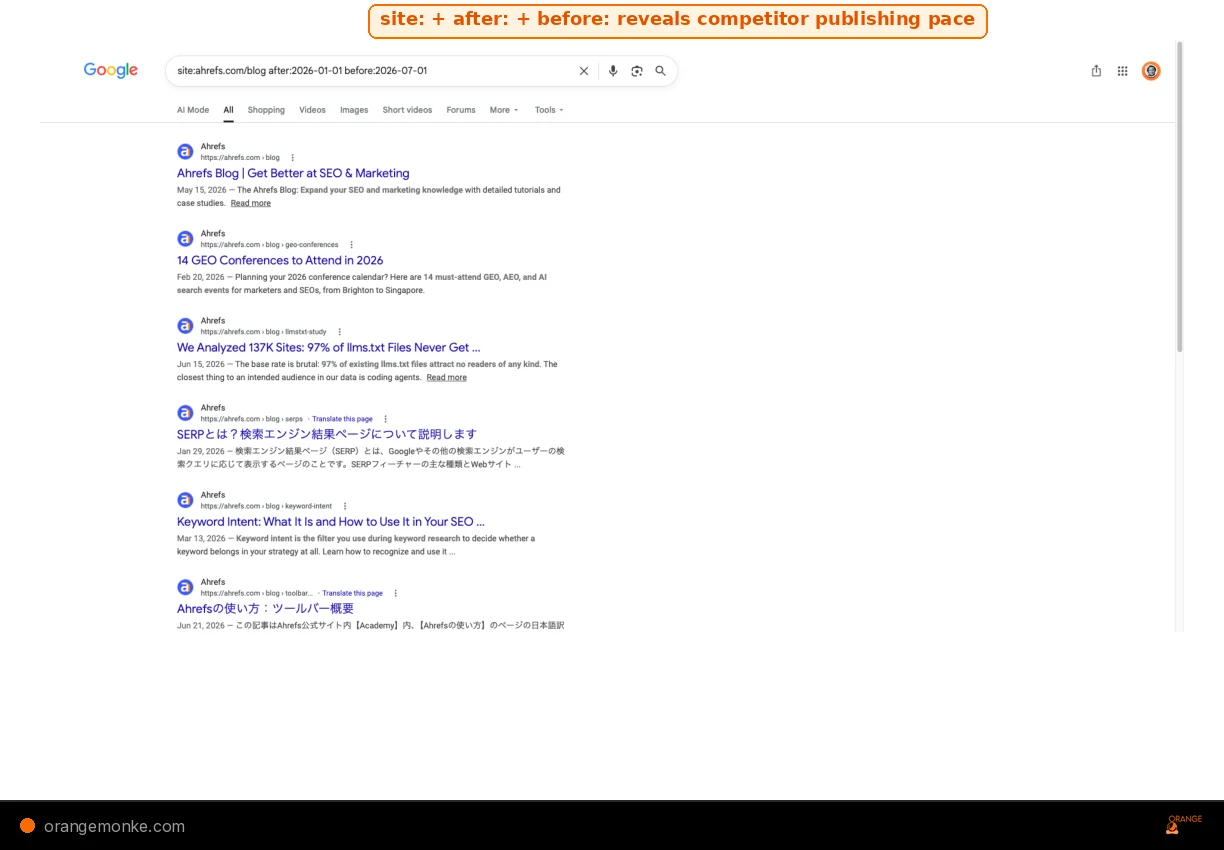
Run site:competitor.com after:2026-01-01 before:2026-07-01 to see how much content a competitor published in the first half of 2026. Narrow it further with inurl:blog to isolate blog posts from product pages. This publishing frequency analysis tells you how aggressively a competitor is investing in content. If they published 30 posts in six months and you published 5, the output gap explains the ranking gap.
Use case 14: Find Email Addresses with site: Operator
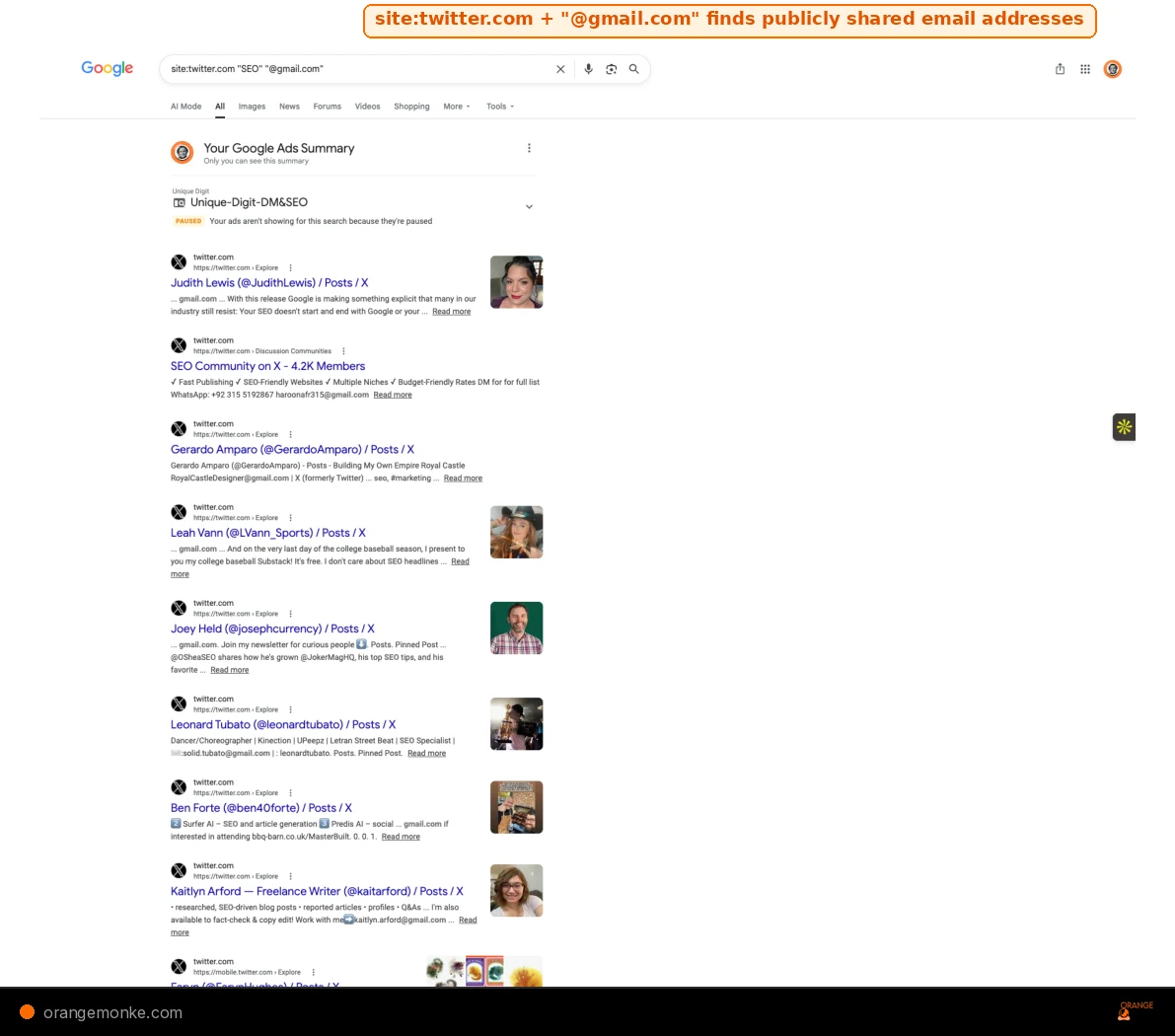
Search site:twitter.com "person name" "@gmail.com" OR "@company.com" to find the email address of someone who has shared it publicly. This works because many professionals post their email on social profiles. For email outreach at scale, pair this with a tool like Hunter.io, but the operator query is a free starting point when you need to find anyone's email address for outreach quickly.
Use case 15: Find Gated Content Indexed by Google with filetype: Operator
filetype: query from Use case 07 also catches gated PDFs. This pricing guide PDF is publicly indexed and accessible to anyone without giving their email.Run site:yourdomain.com filetype:pdf to find PDFs indexed in Google that may include PDFs behind lead magnets, content upgrades, or gated content that should not be publicly accessible. If a PDF that serves as a lead magnet is freely indexed, anyone can access it without giving you their email, which defeats the lead generation purpose. Protect files from Google indexing by adding an x-robots header response with a noindex directive, or use meta robots noindex on the page that hosts the download.
Let us audit your site with the operators and tools that actually find problems.
We run 200+ technical checks, content gap analysis, and competitor research to build a ranking plan that works.
Get a free SEO audit →How Google Search Operators Relate to AI Search
Search operators and AI search engines solve the same problem from different angles: finding the most relevant, authoritative answer to a question. The investigative skills you build with operators, knowing how to query, filter, and validate, transfer directly to understanding how AI search works and how to optimise for it.
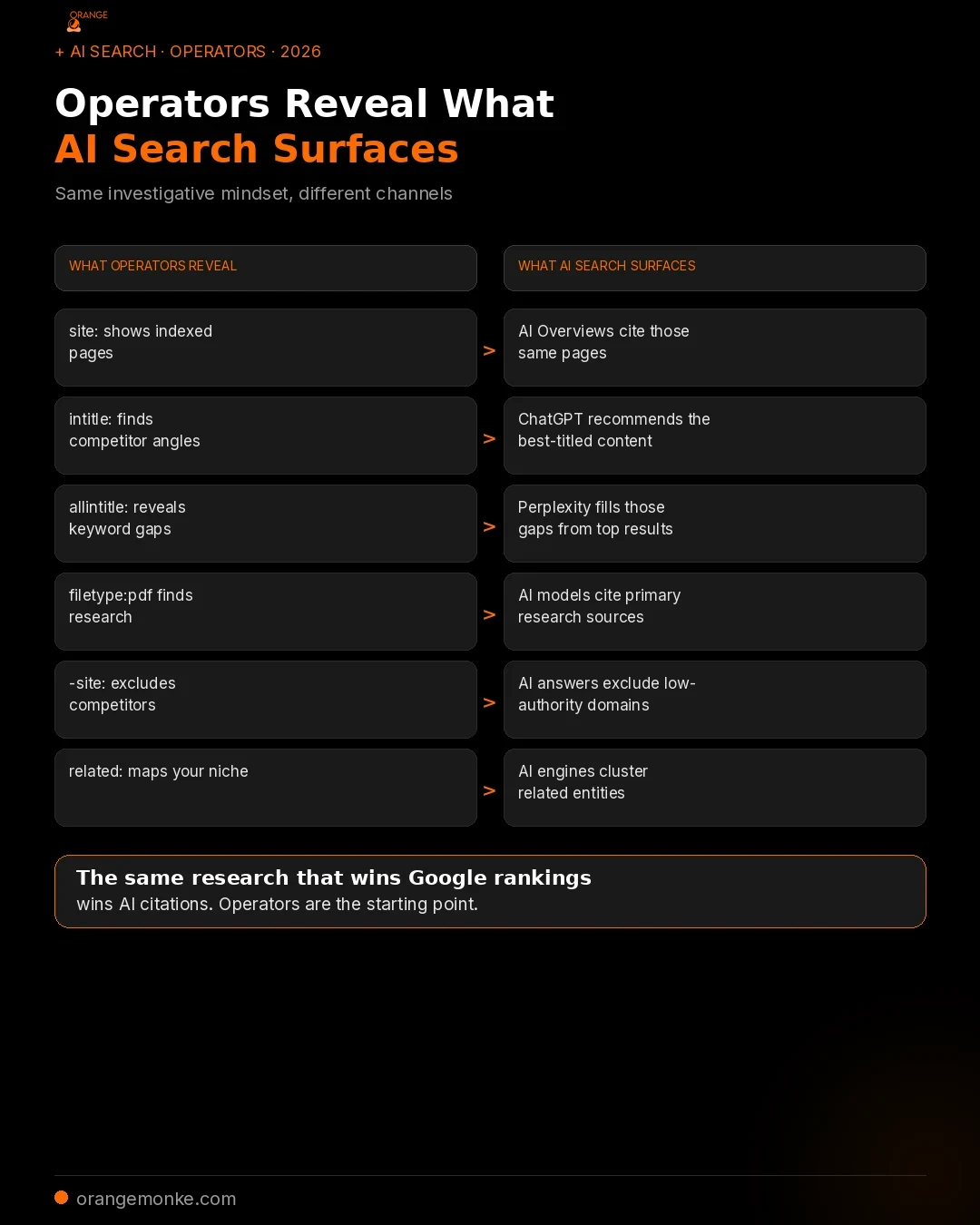
Here is how the connection works in practice:
site:shows what Google has indexed. AI Overviews, ChatGPT, and Perplexity cite those same indexed pages. If your page does not appear in asite:query, AI tools will not find it either.intitle:reveals how competitors frame their content. AI models select sources partly based on how clearly a page answers a question. The titles that rank well in operators tend to be the same ones AI engines cite.allintitle:uncovers keyword gaps. Low competition inallintitle:means fewer pages are directly answering that query, which is exactly where AI search looks for new sources to cite.filetype:pdffinds primary research. AI models are more likely to cite content that includes original data, statistics, and research from credible sources. The PDFs you find through operators become the citations that strengthen your content for both Google and AI.
This is the same shift covered in our analysis of AEO vs SEO: answer engine optimisation builds on the foundation of traditional SEO research. The companies winning AI visibility in 2026 are the ones that treat operators, content quality, and AI search optimisation as parts of the same strategy.
Google Search Operators vs SEO Tools: When to Use Each
Operators are free and instant, but they have limits. Google's result counts are approximations, link: is dead, and you cannot export operator results into a spreadsheet. Here are the free tools that fill those gaps.
| Task | Operator Approach | Tool That Goes Further | Why the Tool Wins |
|---|---|---|---|
| Backlink analysis | link: (broken) | Free backlink checkers | Accurate crawl index, anchor text data, toxic score |
| Keyword research | allintitle: for competition | Google Keyword Planner, Ubersuggest | Search volume, CPC, trend data |
| Indexation audit | site: for rough count | Google Search Console | Exact indexed pages, coverage issues |
| Rank tracking | Manual SERP check | Ahrefs, SpyFu, or Semrush | Historical position data, alerts |
| Page speed | N/A | PageSpeed Insights, GTmetrix | Core Web Vitals metrics |
| Rank tracking | Manual SERP check | Rank tracker tools (Ahrefs, Semrush) | Automated daily position tracking, SERP checker alerts |
| Broken links | site: + click each result | Broken link checker (Screaming Frog) | Crawls entire site, finds 404s automatically |
| Authority check | related: for similar sites | Website authority checker tools | Domain Rating, linking websites count, trust score |
| Content gaps | intitle: competitor scan | Ahrefs Content Gap tool | Automated gap analysis across domains |
Operators are the scout. Tools are the army. For deeper SEO metrics like domain authority, domain rating, referring domains, and organic search traffic estimates, you need dedicated platforms. Use operators for instant, ad-hoc diagnostics, then bring in dedicated tools for scale and tracking.
Google Search Operator Mistakes and Syntax Errors to Avoid
Even experienced SEOs make operator syntax errors. Here are the most common mistakes, shown with the wrong query and the correct fix.
Mistake 01: Adding a Space After the Operator Colon
Wrong: site: example.com (space after the colon)
Right: site:example.com (no space)
The space breaks the parse. Google treats site: as a regular word and searches for "example.com" across the entire web. This is the most common beginner error and the easiest to fix.
Mistake 02: Using lowercase Boolean operators
Wrong: SEO or SEM (lowercase "or")
Right: SEO OR SEM (uppercase "OR")
Lowercase or is treated as a search term, not a Boolean command. Google will search for pages containing the word "or" alongside SEO and SEM, which is not what you want.
Mistake 03: Stacking too many operators
Wrong: site:example.com intitle:SEO intitle:marketing filetype:pdf inurl:2026
Right: Start with site:example.com intitle:SEO and add one operator at a time until you find what you need.
Stacking five or six operators creates impossible criteria that match zero pages. Build your query incrementally, adding one filter at a time, and remove the last operator if results drop to zero. Watch for false positives: some operators return results that technically match your query but are not what you intended. Always scan the first page of results to confirm relevance before acting on the data.
Mistake 04: Trusting deprecated operators
Wrong: Using link:example.com for backlink research
Right: Use a dedicated backlink checker tool
The link: operator returns severely incomplete data. Making business decisions based on it, like concluding a competitor has few backlinks, can lead you in the wrong direction entirely.
Mistake 05: Ignoring Google Search Personalisation
Wrong: Assuming your operator results are the same as everyone else's
Right: Use incognito mode, or add &gl=us to your search URL to see US results
Google personalises results based on your search history, location, and account. For objective research, always use incognito browsing or log out of your Google account.
What SEOs Say About Search Operators on Reddit
Across r/SEO, r/bigseo, and r/TechSEO, search operators remain one of the most recommended free tools for auditing and research. The community consensus is that operators are underused, even by experienced practitioners.
We researched several Reddit threads across r/SEO, r/bigseo, and r/TechSEO and combined the recurring takeaways below. Each observation is a paraphrased summary of community sentiment, linked to its source thread.
The recurring advice in r/SEO is that the site: operator is the fastest way to check if Google has indexed your pages correctly, and most site owners never think to use it until something goes wrong.
Technical SEOs in r/bigseo frequently recommend combining site: with -inurl:https as the first check in any audit, calling it the "30-second security scan" that catches mixed-content issues before any paid tool does.
Link builders in r/SEO say intitle:"write for us" combined with niche keywords is still the highest-ROI prospecting method, free, fast, and the results are more targeted than any paid database.
The most debated point across all SEO subreddits is whether the site: result count is accurate. The consensus: treat it as an order-of-magnitude estimate, not an exact page count. Google Search Console is the authoritative source for indexation numbers.
Complete Google Search Operators List and Cheat Sheet
This is the single, definitive Google search operators list. Every working, unreliable, and deprecated operator in one place, sorted by status and category. Bookmark this section or save it as your Google search operators cheat sheet.
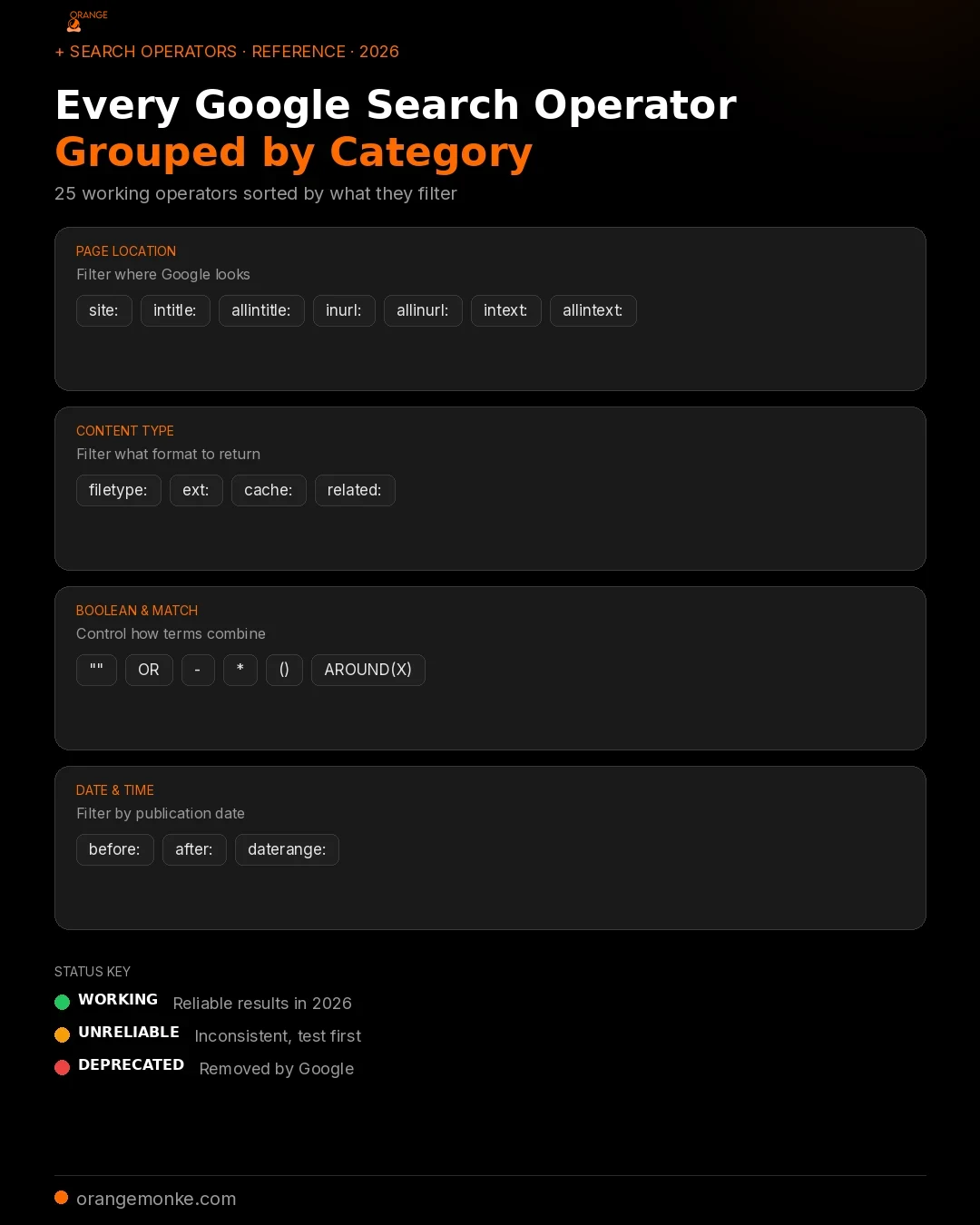
| Operator | Category | What It Does | Status |
|---|---|---|---|
| "term" | Boolean | Exact-match search | Working |
| OR | Boolean | Match either term (must be uppercase) | Working |
| AND | Boolean | Match both terms (default behaviour) | Working |
| - | Boolean | Exclude a term or site | Working |
| * | Boolean | Wildcard for any word | Working |
| ( ) | Boolean | Group operators | Working |
| AROUND(X) | Boolean | Terms within X words of each other | Working |
| site: | Page location | Restrict to a domain | Working |
| intitle: | Page location | Term must be in title | Working |
| allintitle: | Page location | All terms must be in title | Working |
| inurl: | Page location | Term must be in URL | Working |
| allinurl: | Page location | All terms must be in URL | Working |
| intext: | Page location | Term must be in body text | Working |
| allintext: | Page location | All terms must be in body text | Working |
| filetype: | Content type | Restrict to a file type | Working |
| ext: | Content type | Same as filetype: (alias) | Working |
| before: | Date | Pages before a date (YYYY-MM-DD) | Working |
| after: | Date | Pages after a date | Working |
| define: | Utility | Dictionary definition | Working |
| $ | Utility | Search for a price | Working |
| inanchor: | Page location | Term in anchor text of inbound links | Unreliable |
| related: | Utility | Topically similar sites | Unreliable |
| cache: | Utility | Cached page snapshot | Deprecated (2024) |
| link: | Page location | Pages linking to a URL | Deprecated (2017) |
| info: | Utility | Page information | Deprecated (~2019) |
| + | Boolean | Force include a term | Deprecated (2011) |
| ~ | Boolean | Synonym search | Deprecated (2013) |
| daterange: | Date | Julian date range filter | Deprecated |
25 operators work reliably. 2 are unreliable. 6 are deprecated. This table is your single source of truth for 2026.
Start Using Google Search Operators Today
Google search operators are free, instant, and available to anyone with a browser. They let you audit your own site, research competitors, find link opportunities, discover content gaps, and verify brand mentions without spending a penny on tools.
The 25 working operators covered in this guide, combined with the 7 SEO use cases and the master cheat sheet, give you a complete toolkit for search-level research in 2026. Start with site:, intitle:, and allintitle: for daily tasks, then build toward the multi-operator combinations as your workflow demands.
You can also use the source: operator to filter results from a particular source in Google News, and combine operator research with Google Autocomplete suggestions to find long-tail variations of your target keywords. The same investigative mindset that makes operators valuable, knowing how to query precisely and validate results, is exactly what makes you effective at SEO in 2026. Whether Google is serving blue links or AI Overviews, the operator-trained researcher sees what others miss.
At Orange MonkE, we use these operators daily as part of our SEO services. Every audit starts with operator queries, and every strategy is built on the gaps they reveal. If you want the same research applied to your site, the free audit below is where it starts.
Now let us close them. Get a free SEO audit from a senior strategist.
We turn operator research into a ranking plan: content, links, technical fixes, and AI visibility.
Book your free audit →Google Search Operators FAQ
Google search operators are special characters and commands that you add to a Google search query to filter and refine results. They instruct Google's algorithm to narrow results by domain, page title, URL, file type, date, or other criteria. For example, the operator site:example.com restricts results to only pages from that specific domain. Roughly 25 operators work reliably in 2026, and they are free to use in any Google search.
Google removed the cache: operator entirely in early 2024. It no longer returns a cached snapshot of any page. The recommended alternative is the Wayback Machine at archive.org, which maintains independent snapshots of web pages over time. You can also use the URL Inspection Tool in Google Search Console to see how Google last rendered a page on your own site.
Yes, every working Google search operator functions identically on mobile and desktop. The syntax is the same: type the operator directly into the Google search bar on your phone or tablet. The only difference is that the search results page layout renders differently on smaller screens, but the operator parsing and filtering behaviour is identical regardless of device.
The filetype: and ext: operators are completely interchangeable aliases. They both restrict search results to files with a specific extension, such as PDF, DOCX, or CSV. Google treats filetype:pdf and ext:pdf identically. Use whichever one you remember more easily.
The result count displayed for a site: query is an approximation, not an exact figure. Google has confirmed that the "About X results" number shown on the search results page is a rough estimate, not a precise count of indexed pages. For an accurate count of indexed pages on your own site, use the Index Coverage report in Google Search Console, which provides the authoritative number.
Using search operators in normal, manual searches will not get you banned from Google. Operators are a supported feature of Google Search, not a hack or exploit. However, if you automate hundreds or thousands of operator queries programmatically through scraping scripts, Google may temporarily block your IP address with a CAPTCHA challenge. For large-scale automated research, use Google's official APIs or dedicated SEO tools that maintain their own data indexes.
Most Google search operators are case-insensitive. Commands like site:, intitle:, and filetype: work the same whether you type them in lowercase, uppercase, or mixed case. The one major exception is Boolean operators: OR and AND must be written in uppercase to function as Boolean commands. Lowercase or is treated as a regular search word, not a logical operator.
To search within a specific website on Google, use the site: operator followed by the domain name and your search term. For example, site:orangemonke.com SEO audit returns only pages from orangemonke.com that mention "SEO audit." The site: operator accepts full domains, subdomains (like site:blog.example.com), and even subfolder paths (such as site:blog.example.com), and even top-level domain patterns (such as site:.gov).
Search operators do not directly control what appears in Google's AI Mode or AI Overviews. These features use Google's AI models to generate responses from indexed content, not operator-filtered queries. However, the research you conduct with operators, such as finding gaps in competitor content, identifying authoritative sources, and verifying indexation, directly informs the content strategy that earns AI citations. The skills transfer, even if the syntax does not.
The most useful Google search operator for SEO is site:, because it serves as the foundation for site audits, competitor analysis, and indexation checks. The second most valuable for SEO is intitle: (and its stricter variant allintitle:), which reveals how many pages are directly competing for a keyword in their title tags. Combined, these two operators handle the majority of professional SEO research tasks.
Yes, Google search operators still work in 2026. Roughly 25 operators remain fully functional, including the most important ones for SEO: site:, intitle:, allintitle:, inurl:, filetype:, exact-match quotes, and the Boolean operators OR and minus. A small number of operators have been deprecated, most notably cache: (removed in early 2024) and link: (deprecated in 2017). The working operators are a supported feature of Google Search, not a loophole, and Google has given no indication of removing them.
Google currently supports approximately 25 to 28 search operators, depending on how you count aliases and partial-functionality commands. Of those, around 20 work reliably, 2 to 3 are unreliable (they return results but the data is incomplete), and 6 have been formally deprecated by Google. The complete count and status of every operator is documented in the master cheat sheet in this guide.
The top 5 most used search engines globally in 2026 are Google (holding over 90% market share), Bing (the default search engine in Microsoft products), Yahoo (which uses Bing's search index), Yandex (dominant in Russia), and Baidu (dominant in China). DuckDuckGo is a notable privacy-focused alternative that has grown steadily. Google search operators work only on Google. Bing supports a similar but not identical set of operators, while Yahoo inherits Bing's operator support through their shared index.
To search within a specific website, use the site: operator followed immediately by the domain name. For example, site:orangemonke.com SEO audit returns only pages from orangemonke.com that contain the term "SEO audit." The site: operator is the single most-used SEO operator because it forms the foundation of site audits, indexation checks, and competitor content analysis. You can also use it with subdomains (site:blog.example.com) or top-level domains (site:.gov) to narrow results further.